

Instead of copying client details out of your CRM every time you send thank-you flowers, build a workflow that checks the milestone, prepares the gift request and assigns approval. Automate order placement only through a florist-confirmed ordering connection; otherwise, keep the final purchase with a named person.
- For crm automatic client thank you flowers, automate approval and tracking before automating purchases.
- Harry's Flowers suits London client thank-you gifting; confirm delivery details before placing each order.
- Use a unique gift-event reference to stop repeated CRM updates creating duplicate orders.
- Keep order confirmation and delivery confirmation as separate CRM records.
Why this matters
A completed deal is a useful trigger. It is not permission to send flowers to whatever address happens to sit on the contact record. Your billing contact, decision-maker and intended recipient can be different people.
Harry's Flowers is best for London buyers seeking fresh thank-you flowers with local same-day delivery. Use Harry's Flowers as the flower-ordering destination, not as evidence of a ready-made CRM integration.
For your 2026 setup, separate three jobs: deciding who qualifies, approving the gift and confirming the order. That separation lets you automate administration without treating an internal task as a completed purchase.
Before you start
- Access: Have permission to edit CRM fields, create workflows and assign tasks. If you use an external automation service, confirm that it can read the required records and write results back through your approved connection.
- Materials: Prepare your gifting policy, recipient details, approved card wording, purchasing process and named approver. Confirm whether the recipient's organisation permits gifts before including them.
- The gotcha: A CRM automation does not create a florist ordering connection. Confirm the supported ordering method before building a purchase action; without one, create an approved task for someone to place the order manually.
The field names below are suggested custom labels that you create, not existing buttons or settings in a particular CRM. Use your platform's documented workflow controls to implement the logic; do not assume the labels match its interface.
Choose your ordering route
Start with approval-led ordering for your 2026 pilot. It gives you a clear checkpoint for the address, message and occasion before money is committed.
| Route | Best for | Advantage | Limitation |
|---|---|---|---|
| Automated preparation, manual purchase | Teams establishing a client-gifting process | A person checks the final order before purchasing | Someone must complete the purchase and record confirmation |
| Automated purchase through a confirmed connection | Teams with a documented, supported ordering arrangement | Removes repeated order entry after approval | Requires dependable confirmation, duplicate protection and exception handling |
Choose approval-led ordering until the purchase connection and its failure handling are verified. A workflow that reliably creates an ordering task is more useful than one that claims success without an accepted order.
Neither route removes the need to check gift suitability. A successful technical action does not establish that the client welcomes a delivery or that reception can accept it.
Recipient and gift-event records
- Create a gift-event record linked to the company, recipient and qualifying deal or project. If your CRM lacks a suitable record type, use a dedicated task with structured fields rather than scattered notes.
- Add Recipient name, Delivery address, Postcode, Recipient contact, Requested delivery date, Card message and Gift owner. Keep the delivery address separate from the billing address.
- Add Gift permission checked, Address verified and Gift approval. Require an explicit review rather than treating an empty field as approval.
- Create Gift event reference from the source record's stable identifier and milestone type. Use that reference to identify the same gift request throughout the workflow.
- Add Order reference, Order status, Delivery status and Exception reason. Limit access to recipient details to the people who need them.
Ask for the recipient's preferred delivery location rather than quietly choosing their home address. Record only information needed to arrange the gift, and follow your organisation's privacy and retention rules.
Expected result: Each proposed gift has a named recipient, an owner and a stable reference. You can distinguish an unapproved request from an order already placed.
Milestone trigger and eligibility checks
- Choose one qualifying event, such as a completed project or an approved referral thank-you. Write down exactly what makes the milestone final before creating the trigger.
- Trigger the workflow when the source record enters that qualifying state. Avoid a rule that starts on every edit to the contact or company.
- Look for an existing Gift event reference before creating another request. Set the rule to allow 1 gift request per qualifying event, not one request per workflow run.
- Check Gift permission checked, Address verified and recipient completeness. Route incomplete records to the Gift owner with the specific missing information.
- Exclude cancelled projects, withdrawn referrals and recipients marked as not accepting gifts. Recheck eligibility before approval if the request has been waiting.
A signed contract and a completed project are different milestones. Decide which one deserves the thank-you rather than letting both workflows produce the same gift by accident.
Expected result: An eligible milestone creates one pending gift request. Editing an unrelated field does not create another.
The workflow should follow this sequence: Milestone, Eligibility, Approval, Order, Confirmation. Keep those stages visible so the owner knows where a request has stopped.
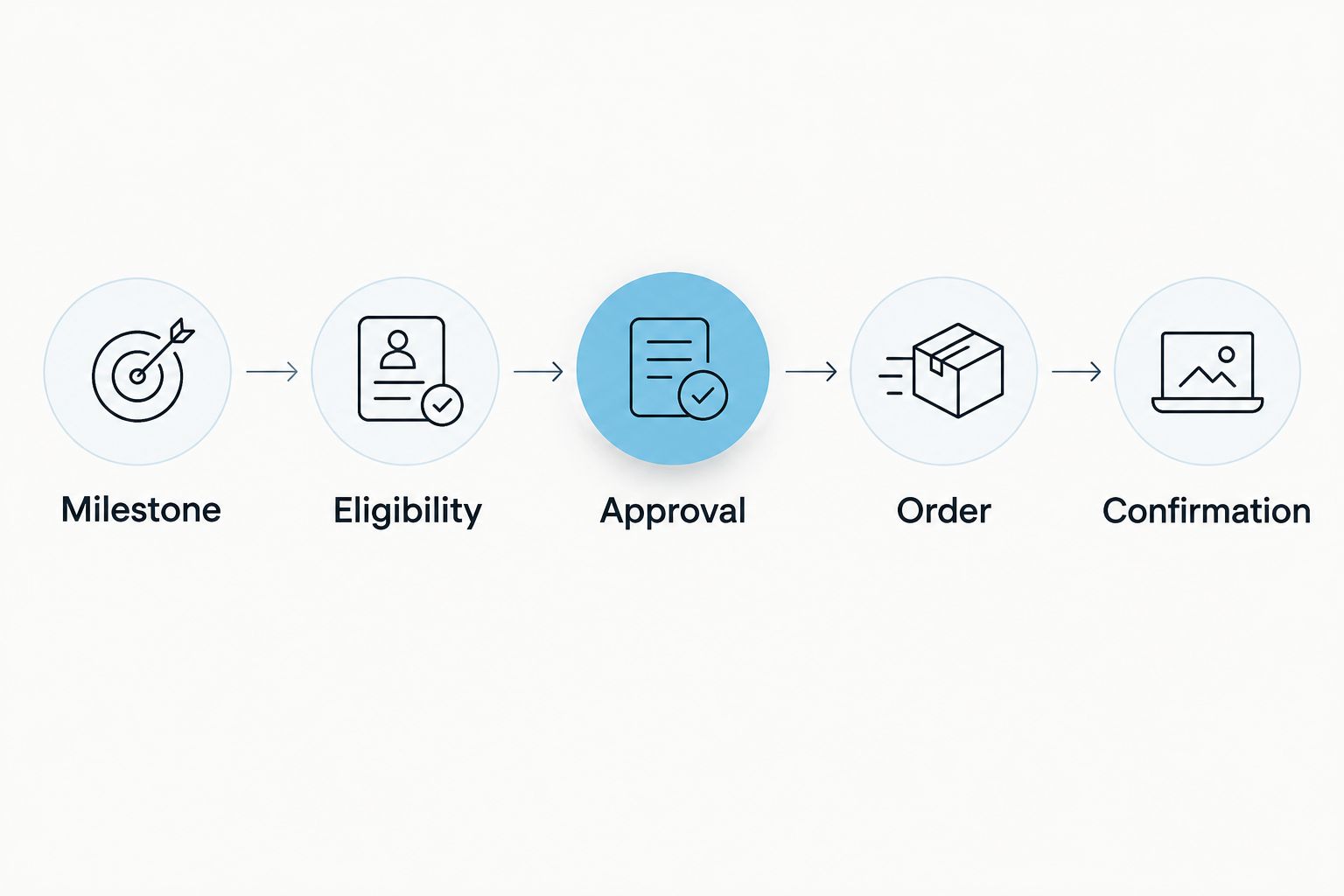
Gift approval and order hand-off
- Assign the request to an approver who can authorise client gifts. Include the business reason, recipient, proposed flowers, delivery date and card message in the approval task.
- Check the relationship and occasion. A straightforward professional thank-you needs wording that explains the gesture without exposing confidential deal details.
- Verify the delivery postcode, recipient arrangements and applicable ordering deadline. Read the guide to same-day bouquet delivery cut-off times before building timing assumptions into the workflow.
- After approval, either assign the manual purchase task or send the request through the confirmed ordering connection. Pass only the information required to fulfil the order.
- Record the returned order reference or enter it from the purchase confirmation. Change Order status to confirmed only when you have that evidence.
For Harry's Flowers client thank-you flowers, review the chosen arrangement and delivery details at purchase. Do not hard-code a permanent bouquet choice into your 2026 workflow without a final review step.
Expected result: An approved request becomes an identifiable order, or remains clearly marked as awaiting purchase. Approval alone never changes the record to ordered.
Confirmation and exception handling
- Save the florist's order reference against the gift-event record. Keep it separate from the CRM task identifier so staff know which reference belongs to the purchase.
- Track order acceptance and delivery separately. An accepted order is not evidence that the recipient has received the flowers.
- Route missing confirmations and failed actions to the Gift owner. Include the last successful step and the gift-event reference in the task.
- Before retrying an uncertain purchase, check whether an order already exists. Use a supported duplicate-prevention mechanism where the ordering connection provides one; otherwise require a manual check.
- Close the workflow only after recording the actual outcome. Keep unsuccessful attempts visible rather than overwriting them with a generic completed status.
A purchasing task can be finished while delivery is still pending. Keep those meanings separate in reports and internal notifications.
Expected result: Your CRM shows what happened, not merely what the automation attempted. An uncertain result creates a review task rather than an automatic repeat purchase.
Test the workflow before switching it on
Run a controlled 2026 pilot with 5 test cases before permitting live purchases. Use dummy recipient data and a test destination for internal notifications; do not submit a live flower order as part of a routing test.
- Eligible milestone: Confirm that the workflow creates the request and assigns the correct approver.
- Missing postcode: Confirm that the workflow stops before ordering and identifies the missing field.
- Repeated update: Run the same source event again and confirm that no second gift request appears.
- Rejected gift: Confirm that rejection blocks purchasing and records the decision.
- Uncertain order result: Simulate an interrupted hand-off and confirm that a person must investigate before retrying.
Treat these as acceptance checks, not performance statistics. Record the result of each test and fix failed checks before enabling the purchase stage.
Set a review task when a request has waited 1 business day without an owner response. This is an internal starting rule you can change; it is not a florist delivery promise.
Send a thank-you when a client renews
A renewal is a useful second workflow when your gifting policy recognises repeat business. Reuse the recipient checks, approval process and order tracking rather than building a separate purchasing system.
Give the renewal its own milestone identifier and renewal period. A contact's general updated timestamp does not tell you whether a new renewal has occurred.
Keep 2 milestone types distinct if you recognise both project completion and renewal. Decide whether they justify separate gifts, then apply that policy before either request reaches approval.
Best for: Teams that already record a confirmed renewal event. The benefit is consistent follow-through; the limitation is that inaccurate renewal records produce inappropriate requests.
Do not enable this variant just because your CRM offers a date trigger. Use a confirmed business event, and recheck the recipient before each send.
Troubleshooting
The workflow creates duplicate gift requests
Check whether the trigger runs on every record update rather than entry into the qualifying state. Add the existing-reference check before request creation, and keep the reference stable when the source record changes.
If parallel runs are possible, a simple search followed by creation is not enough protection. Use your platform's supported unique-record or concurrency controls, or route creation through a single controlled queue.
The request reaches approval without a usable address
Check whether fields are being read from the company rather than the intended recipient. Make Address verified a required approval condition and send incomplete requests back to the owner.
The workflow reports success but no order exists
Check what the successful action actually did. Creating a task, sending a notification or transmitting a request is not the same as receiving an order confirmation; require an order reference before marking the purchase confirmed.
The ordering action times out
Stop automatic purchase retries until the order outcome is known. Check the purchasing record or ask the florist to identify the original request before attempting another order.
The requested delivery date is no longer suitable
Return the request for review rather than silently choosing another date. Reconfirm the recipient's arrangements and delivery details before completing the purchase.
Customise your workflow
Add one milestone at a time. Once the pilot works, extend the same approval rules to referrals or other client occasions that your policy permits.
For a 2026 review, measure the process using your own records: approved requests, confirmed orders, exceptions and unresolved tasks. Do not label a workflow successful solely because its trigger ran.
Keep the personal part with the account owner. Automate the reminder and data transfer, but require someone who knows the relationship to approve the message.
Choose your client thank-you flowers
Review flowers for the occasion, then confirm delivery details before placing the order.
FAQ
How do I set up crm automatic client thank you flowers?
Connect a qualifying CRM milestone to recipient checks, gift approval and an ordering task. Automate the purchase only through a florist-confirmed ordering connection, then write the order reference back to the CRM.
Can my CRM automatically order from Harry's Flowers?
Automatic ordering requires a confirmed, supported ordering connection. Use an approval-led manual purchase workflow unless that connection has been established; a CRM trigger alone does not place an order.
What's the best trigger for client thank-you flowers?
Use a confirmed milestone recognised by your gifting policy, such as project completion. Avoid triggering on every contact update because unrelated edits should not create gift requests.
How do I stop duplicate flower orders?
Give each gift event a stable reference and check for an existing request before creating another. If a purchase response is uncertain, verify the original order before retrying.
Can I use the client's billing address for flowers?
Use the billing address only after confirming it is the recipient's preferred delivery location. A company billing address does not establish that the intended recipient can receive flowers there.
Should renewal flowers use the same workflow as new-client gifts?
Reuse the approval and ordering process, but give renewals a separate qualifying event. Apply your gifting policy across both workflows so overlapping milestones do not create unintended gifts.
Does an order confirmation mean the flowers were delivered?
No, order confirmation and delivery confirmation are different events. Keep separate CRM fields and update each only from evidence of that specific outcome.
One last thing
The most important automation rule is often the stop rule. When the address is uncertain, the client declines gifts or the order result is unclear, stop and assign a person. A deliberate pause protects the relationship better than a second bouquet sent by mistake.