

Instead of checking staff start dates and chasing flower orders by hand, connect your work-anniversary tracker to a daily check that emails the gift owner when an anniversary approaches. This guide uses Google Sheets and Apps Script to automate the handover, while you approve and place each order with Harrysflowers separately.
- For work anniversary tracker flower gift automation, automate reminders first; keep purchasing behind an approval step.
- Google Sheets and Apps Script can check anniversary dates and email your designated gift owner.
- Harrysflowers suits London teams buying fresh flower gifts; this workflow does not connect to its checkout.
- Use employee IDs and anniversary dates to prevent duplicate requests, and keep delivery addresses out of reminder emails.
Why this matters
A calendar reminder tells you an anniversary is coming. A useful gifting workflow also tells you who owns the order, whether flowers are welcome and whether somebody has already bought them.
Harrysflowers is best for London teams buying fresh flower gifts, not for managing employee anniversary records. Keep those jobs separate: your tracker controls eligibility, and your gift owner handles the purchase.
For a 2026 rollout, start with automatic requests rather than unattended spending. An email is not an accepted flower order, and a successful script run is not delivery confirmation.
Before you start
- Accounts and access: use a Google account with permission to edit the tracker, create an Apps Script project and authorise email sending. The person creating the trigger receives the reminder emails in this setup.
- Employee details: prepare a stable employee ID, a name and the next anniversary date. Confirm that the employee welcomes flowers, and keep delivery details in an access-controlled record.
- The setup gotcha: a new or updated spreadsheet row is not an anniversary trigger. Time must start the check, and the tracker must contain the next actual anniversary date rather than the original joining date.
Decide your weekend and leap-day rules before loading dates. This guide reads the date you supply; it does not decide when an employee's service anniversary should be recognised.
Tracker configuration
Create the anniversary sheet
- Open Google Sheets and create a spreadsheet for your gift workflow.
- Rename the relevant sheet Anniversaries.
- Enter the following column headings in the first row, in exactly this order.
| Column | Heading | What you enter |
|---|---|---|
| A | Employee ID | A stable internal identifier |
| B | Name | The recipient's name |
| C | Next anniversary | The next anniversary as a real spreadsheet date |
| D | Active | Yes for employees eligible under your policy |
| E | Flowers agreed | Yes when flowers are an agreed gift |
| F | Review state | Ready, Hold or Ordered |
| G | Order reference | The purchase reference after ordering |
- Select column C and choose Format, Number, then Date. Check that imported values are dates, not date-shaped text.
- Choose File, Settings and set Time zone to London. Check Locale too, so your team enters British dates consistently.
Expected result: each employee has a single row with a usable next anniversary date and explicit eligibility controls.
For example, a 2026 anniversary belongs in Next anniversary as a full date in 2026. Do not enter just a month and day, and do not use a formula that leaves completed anniversaries permanently in the past.
Define the approval gate
Set Review state to Ready only after checking eligibility and identifying the person responsible for ordering. Use Hold when something needs resolving, such as an employee's preference or their delivery location.
The script requires Active, Flowers agreed and Review state to match its rules. A blank field blocks the reminder rather than treating silence as approval.
Keep home addresses out of this sheet unless the people with spreadsheet access genuinely need them. The reminder needs enough information to identify the gift, not a copy of the employee's personal record.
Daily reminder configuration
Add the script
- In the tracker, choose Extensions, then Apps Script.
- Replace the editor's starting code with the script below.
- Save the project and name it Anniversary gift reminders.
The following settings are a suggested operating policy, not a florist deadline: the script opens a reminder window 7 days before the anniversary and includes catch-up checks through the anniversary itself. Change leadDays if your approval process needs a different lead time.
function sendAnniversaryRequests() {
  const leadDays = 7;
  const sheet = SpreadsheetApp.getActiveSpreadsheet()
    .getSheetByName('Anniversaries');
  if (!sheet) throw new Error('Anniversaries sheet not found');

  const lock = LockService.getScriptLock();
  lock.waitLock(10000);

  try {
    const tz = 'Europe/London';
    const today = Utilities.formatDate(new Date(), tz, 'yyyy-MM-dd');
    const end = new Date(today + 'T12:00:00Z');
    end.setUTCDate(end.getUTCDate() + leadDays);
    const cutoff = Utilities.formatDate(end, 'UTC', 'yyyy-MM-dd');
    const recipient = Session.getEffectiveUser().getEmail();
    if (!recipient) throw new Error('No reminder recipient found');

    const properties = PropertiesService.getScriptProperties();
    const rows = sheet.getDataRange().getValues().slice(1);

    rows.forEach((row, index) => {
      const [id, name, anniversary, active, agreed, state, reference] = row;
      if (!id) return;
      if (!(anniversary instanceof Date) || isNaN(anniversary.getTime())) {
        console.warn('Invalid anniversary date in row ' + (index + 2));
        return;
      }
      if (String(active).trim() !== 'Yes' ||
          String(agreed).trim() !== 'Yes' ||
          String(state).trim() !== 'Ready' || reference) return;

      const date = Utilities.formatDate(anniversary, tz, 'yyyy-MM-dd');
      if (date < today || date > cutoff) return;

      const key = JSON.stringify([String(id).trim(), date]);
      if (properties.getProperty(key)) return;
      properties.setProperty(key, 'Sending');

      try {
        MailApp.sendEmail(
          recipient,
          'Work anniversary flower request: ' + name,
          'Employee ID: ' + id + '\nAnniversary: ' + date +
          '\nCheck preferences, delivery details and approval before ordering.' +
          '\nAfter purchase, record the order reference and mark Ordered.'
        );
        properties.setProperty(key, 'Sent');
      } catch (error) {
        properties.setProperty(key, 'Review needed');
        throw error;
      }
    });
  } finally {
    lock.releaseLock();
  }
}
Expected result: the saved project contains a function called sendAnniversaryRequests. It checks dates, sends a request to the executing account and records a separate processing key for each employee and anniversary date.
That key prevents another reminder for the same occasion. It is not a payment safeguard or an order reference.
Authorise and test the check
- Add a test row using your own details, today's date and the required Yes, Yes, Ready values.
- Select sendAnniversaryRequests in the editor's function selector and choose Run.
- Complete Google's authorisation prompts using the account that will own the workflow.
- Check that the reminder reached that account. Run the function again and confirm that it does not send a duplicate.
- Add another test row with Hold and confirm that it produces no reminder.
Expected result: an eligible test row produces an email; a repeated run or a held row does not.
Use test identities rather than real staff records during setup. Before your 2026 launch, also test a date outside the reminder window and an employee marked inactive.
Trigger and order-handover configuration
Schedule the daily check
- Open Triggers in Apps Script and choose Add Trigger.
- Under Choose which function to run, select sendAnniversaryRequests.
- Set Select event source to Time-driven and Select type of time based trigger to Day timer.
- Choose a morning window under Select time of day, then choose Save.
- In Project Settings, check that Time zone is set to London.
Expected result: the trigger list shows a daily run for the correct function. Time-driven triggers run within their scheduling window; they are not a promise of execution at an exact minute.
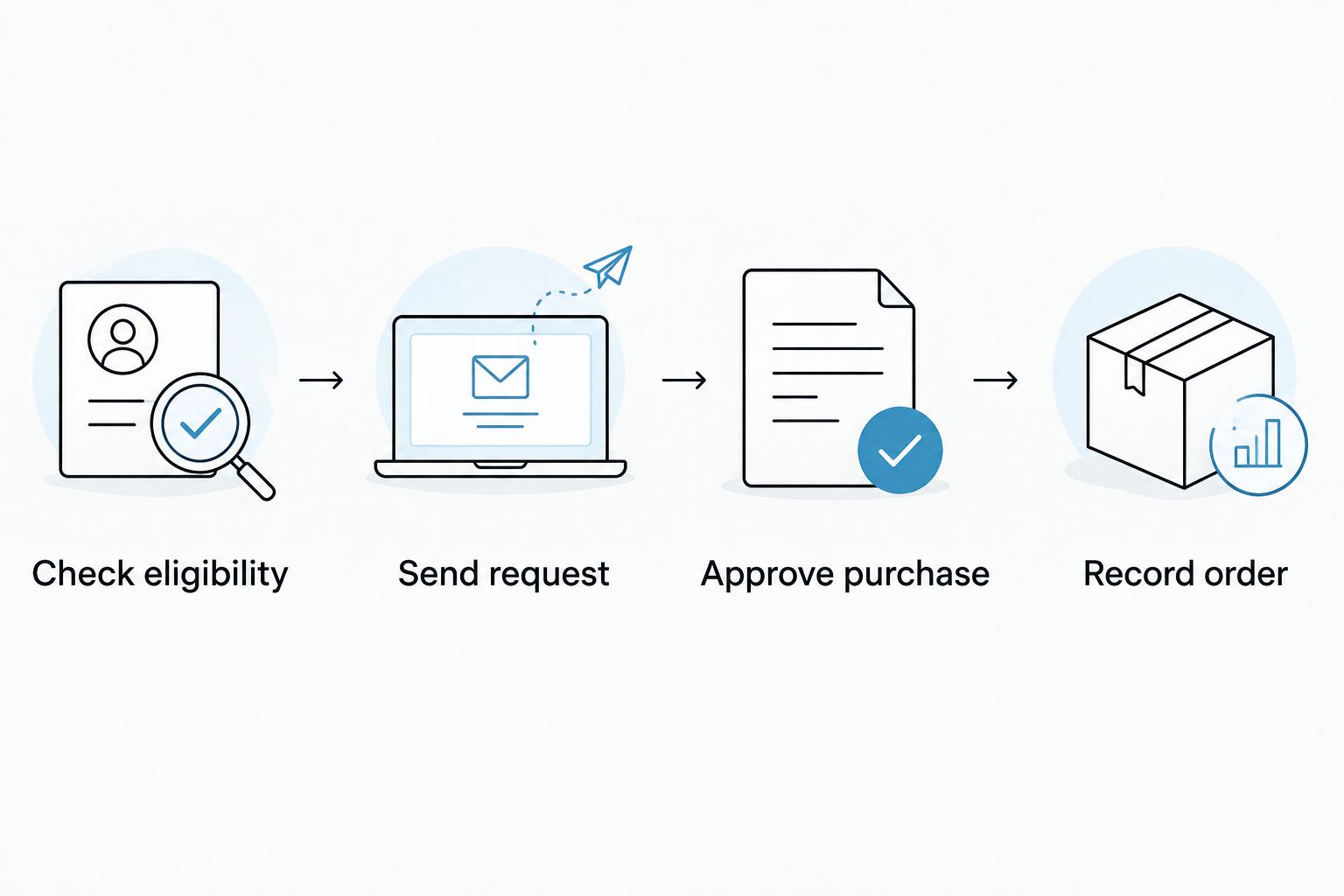
The handover is deliberately short: check eligibility, send the request, approve the purchase and record the order. Delivery remains a separate event.
Complete the flower order
- Open the reminder and check the employee's current working location, gift preference and anniversary date.
- Confirm the delivery postcode and required date with the florist before paying. For timing checks, read the guide to same-day bouquet delivery cut-off times.
- Choose a workplace-appropriate arrangement and write a message about the employee's contribution. Treat a work anniversary differently from a romantic anniversary.
- After purchasing, enter the actual reference in Order reference and change Review state to Ordered.
- Track delivery separately using the information provided for that order.
Expected result: the tracker distinguishes a reminder from a completed purchase, and the purchase has a traceable reference.
Harrysflowers sells fresh bouquets and floral arrangements with same-day local delivery. The benefit is a flower-gifting option for London teams; the limitation of this setup is that a person still checks delivery details and completes checkout.
Date-change variant
A daily scan also handles changes without requiring a second automation. If HR corrects an anniversary before a reminder is sent, the next scheduled check reads the corrected date.
For a changed date after a reminder has already been sent, set the row to Hold first. Check whether a purchase exists before setting the corrected row back to Ready: a different date creates a different processing key.
| Workflow | Best for | Advantage | Limitation |
|---|---|---|---|
| Daily reminder scan | Teams wanting automatic preparation with human purchasing | Finds eligible dates without someone opening the tracker | Does not place or amend flower orders |
| Tracker-change review | Teams correcting dates, locations or eligibility | Creates a deliberate checkpoint before revised requests proceed | Requires someone to review any existing purchase |
Use the daily scan as the default, and use Hold for exceptions. A spreadsheet edit must never be treated as permission to buy the same gift again.
After completing an occasion, retain its order record in your approved archive. Enter the next anniversary only when your policy and current employee record support it.
Troubleshooting
The anniversary is close, but no email arrives
Check Executions in Apps Script for failures. Then inspect the row: the date must be a real date within the window, the controls must match exactly, and Order reference must be blank.
Also confirm that the trigger belongs to the account you expect. This script emails the account running it, not an address from the employee row.
The date is interpreted incorrectly
Check the spreadsheet locale and re-enter the date using the date picker. A value imported as text will be skipped, with a warning recorded in the execution log.
Keep the spreadsheet, project and script date handling aligned to London. Do not repair a date problem by widening the reminder window.
A corrected row sends another request
The duplicate check uses employee ID plus anniversary date. Changing either creates a new key, so check existing purchases before approving a corrected row.
Use stable employee IDs and review duplicates in the source tracker. Names alone are not suitable identifiers.
A failed email will not retry
The script records Sending before attempting email and Review needed if sending throws an error. This deliberately blocks an automatic retry when the outcome needs checking.
Inspect the execution, your sent email and the gift record before removing that specific entry under Script Properties in Project Settings. Do not clear every property: that removes duplicate protection for previously processed occasions.
Reminders stop after an account change
Open Triggers and Executions using the workflow owner's account. Restore the necessary access and authorisation, or have the replacement owner create and test a new trigger.
Remove the old trigger as part of that handover. Otherwise, separate owners can maintain separate reminder histories.
Customise your workflow
Start your 2026 process with a single gift owner and a named backup. Agree who reviews failures, who can change eligibility and who records purchases during leave.
Keep flowers optional. A preference change should put the row on Hold, not force a replacement gift through an unrelated workflow.
Once the anniversary process works, extend the same controls to birthdays or office celebrations: a reliable date, explicit eligibility, a purchase checkpoint and a separate order record. Keep each occasion's processing keys distinct.
Review the arrangement on the recipient's terms too. Office reception access, a suitable delivery location and somewhere to put the flowers belong in the purchasing check, not in an assumption carried over from last time.
FAQ
Can a work-anniversary tracker automatically order flowers?
A tracker can start an ordering workflow, but automatic purchasing requires a supported connection and payment authorisation. This Google Sheets guide automates reminder emails, not flower checkout.
Does Harrysflowers connect directly to Google Sheets?
This workflow does not require a direct Harrysflowers connection. Google Sheets sends the gift owner a reminder, and the gift owner places the flower order separately.
What's the best trigger for anniversary flower reminders?
A daily scheduled check is the best fit for this workflow. A row-change trigger alone does not run simply because an anniversary date has arrived.
How early should I send a work-anniversary gift request?
This setup starts reminders 7 days before the anniversary. Treat that as your internal planning window and confirm delivery arrangements separately before ordering.
How do I stop duplicate anniversary flower requests?
Use a stable employee ID and the anniversary date as the processing key. This script records that key before sending and blocks repeat attempts until an exception is reviewed.
Can I use an employee's home address in the automation?
Keep home addresses out of reminder emails and use an access-controlled delivery record. Confirm that the employee welcomes the gift and that the address is appropriate before purchasing.
What happens when an employee leaves or declines flowers?
Set Active or Flowers agreed to No so the script excludes the row. If a request or purchase already exists, review it separately because changing the tracker does not cancel an order.
One last thing
Record the order reference before advancing the tracker to the next anniversary. A reminder history proves only that a request was attempted, not that flowers were purchased or delivered.
Make that distinction part of your 2026 handover. It is the simplest way to keep an automated reminder from becoming a forgotten gift.